
Webflow SEO Checklist (2026): 25 Proven Steps to Rank #1
You built a stunning Webflow site — but it’s sitting on page 3 of Google. Sound familiar?
Here’s the hard truth: great design doesn’t equal great rankings. SEO on Webflow requires intentional setup, smart structure, and ongoing optimization.
The good news? Webflow gives you powerful SEO tools right out of the box — most people just don’t know how to use them correctly.
In this guide, you’ll get a complete, step-by-step Webflow SEO checklist for 2026 — covering everything from technical foundations to content and link building. Whether you’re a beginner or a seasoned marketer, this checklist will help you climb the rankings faster.
Quick Answer: What Is the Webflow SEO Checklist?
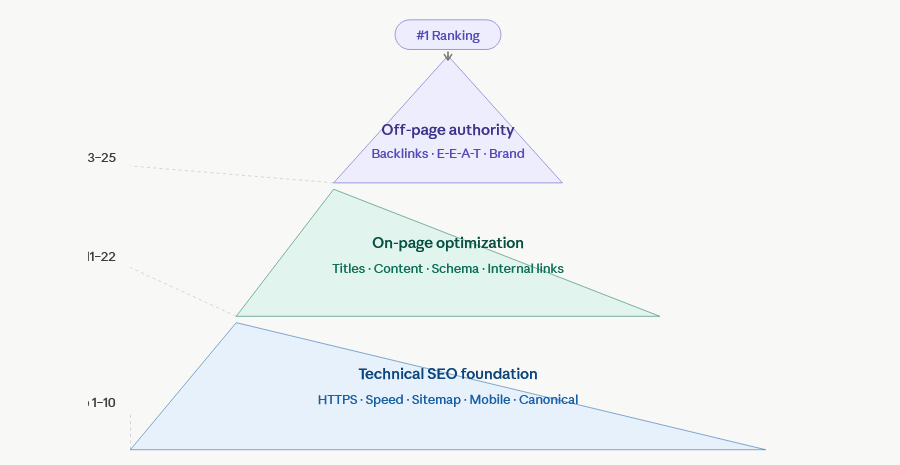
The Webflow SEO checklist is a set of 25 proven steps to optimize your Webflow website for search engines. It covers technical SEO (site speed, indexing, schema), on-page SEO (titles, headings, content), and off-page SEO (backlinks, authority). Follow these steps to improve your Google ranking in 2026.
Why Webflow SEO Is Different (and Powerful)
Webflow is not like WordPress. It generates clean, semantic HTML and gives designers full control over meta tags, canonical URLs, and structured data — without needing plugins.
But that control also means you have to set things up manually. Webflow won’t do SEO for you automatically.
Here’s what makes Webflow SEO unique:
- Clean code output — no bloated plugins slowing your site down
- Built-in CMS — great for blog SEO and dynamic content
- Fine-grained control — custom meta tags, Open Graph, and robots settings per page
- No automatic sitemaps for free plans — you need a paid plan for auto-generated sitemaps
Now, let’s get into the checklist.
Also Read: Top 5 Webflow Agency Templates
The Complete Webflow SEO Checklist (2026)
Section 1: Technical SEO Foundations
Technical SEO is the backbone of any high-ranking site. Get these right first.
✅ Step 1: Connect a Custom Domain
Google ranks custom domains (like yoursite.com) more favorably than default Webflow subdomains (yoursite.webflow.io).
How to do it:
- Go to Project Settings → Publishing
- Add your custom domain
- Update your DNS records with your domain registrar
- Wait for propagation (up to 48 hours)
💡 Pro Tip: Always use
wwwor a consistent version of your domain and set up a 301 redirect from the non-www version to avoid duplicate content issues.
✅ Step 2: Enable HTTPS (SSL)
Google uses HTTPS as a ranking signal. Webflow automatically provides SSL certificates for all custom domains — but verify it’s active.
Check: Visit your site. You should see a padlock icon in the browser bar. If not, go to Project Settings → Hosting and enable SSL.
✅ Step 3: Submit Your Sitemap to Google Search Console
Webflow auto-generates a sitemap at yoursite.com/sitemap.xml (on paid hosting plans). Submitting it tells Google exactly which pages to crawl.
How to do it:
- Open Google Search Console
- Add and verify your property
- Go to Sitemaps → Submit a new sitemap
- Enter
yoursite.com/sitemap.xml
💡 Pro Tip: After major content updates, resubmit your sitemap to prompt faster re-indexing.
✅ Step 4: Configure Your Robots.txt File
Your robots.txt file tells search engines which pages to crawl or skip. Webflow generates a default one, but you may want to customize it.
Access it at: yoursite.com/robots.txt
Make sure you’re NOT accidentally blocking important pages. A common mistake is disallowing your whole site during development and forgetting to change it before launch.
✅ Step 5: Fix Crawl Errors
Log in to Google Search Console regularly and check the Coverage report. Look for:
- 404 errors (broken pages)
- Redirect chains (too many hops)
- Blocked resources (CSS/JS being blocked by robots.txt)
Fix 404s by either restoring the page or setting up a 301 redirect in Webflow’s Editor → 301 Redirects.
✅ Step 6: Set Up Canonical Tags
Canonical tags prevent duplicate content penalties. Webflow auto-adds canonical tags, but verify they’re pointing to the correct URL — especially if you have CMS collection pages with similar content.
Check in Webflow: Go to Page Settings → SEO Settings for each page and confirm the canonical URL is correct.
✅ Step 7: Optimize Site Speed (Core Web Vitals)
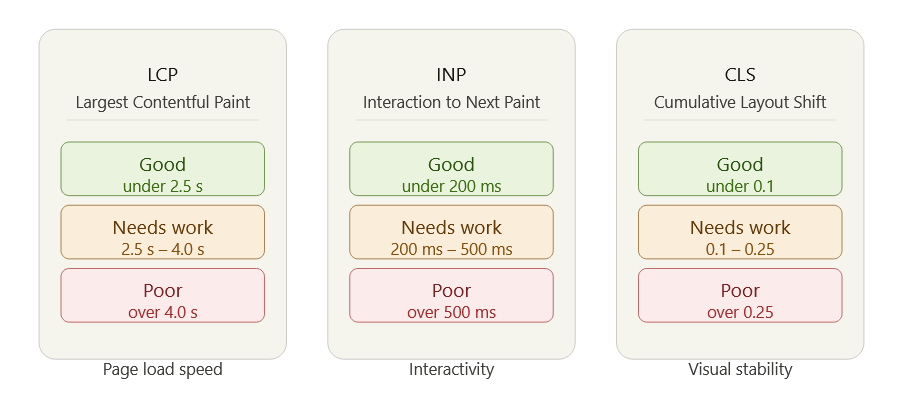
Google’s Core Web Vitals are now a direct ranking factor. Your Webflow site needs to score well on:
- LCP (Largest Contentful Paint): Under 2.5 seconds
- FID/INP (Interaction to Next Paint): Under 200ms
- CLS (Cumulative Layout Shift): Under 0.1
Speed wins in Webflow:
- Use WebP images (Webflow converts automatically when you upload)
- Enable lazy loading for images below the fold
- Minimize custom code (especially render-blocking JS)
- Use Webflow’s built-in CDN for fast global delivery
- Avoid embedding heavy third-party scripts
Test your site: Use Google PageSpeed Insights and aim for 90+ on mobile.
✅ Step 8: Make Your Site Mobile-Friendly
Over 60% of Google searches happen on mobile. Webflow’s responsive design tools make this easier, but you still need to test it.
How to check:
- Use Webflow’s built-in mobile preview breakpoints (Tablet, Mobile Landscape, Mobile Portrait)
- Run Google’s Mobile-Friendly Test
Fix text that’s too small, buttons that are too close together, and images that overflow the screen.
✅ Step 9: Set Up 301 Redirects
When you change a URL or delete a page, set up a 301 redirect to preserve link equity.
In Webflow: Go to Project Settings → 301 Redirects → Add Redirect
Example: Redirect /old-blog-post to /new-blog-post
✅ Step 10: Add Structured Data (Schema Markup)
Schema markup helps Google understand your content and can earn rich snippets in search results (star ratings, FAQ boxes, breadcrumbs).
How to add it in Webflow:
- Go to Page Settings → Custom Code → Head Code
- Paste your JSON-LD schema markup
Use Schema.org or Google’s Structured Data Markup Helper to generate the code.
Common schema types for Webflow sites:
Article— for blog postsFAQPage— for FAQ sectionsLocalBusiness— for local service sitesProduct— for e-commerce pages
Section 2: On-Page SEO Optimization
Once your technical foundation is solid, focus on the content Google actually reads.
✅ Step 11: Optimize Title Tags
Your title tag is one of the most important on-page SEO elements. It appears in search results and browser tabs.
Best practices:
- Keep it under 60 characters
- Put your primary keyword near the beginning
- Make it compelling and click-worthy
- Avoid keyword stuffing
In Webflow: Go to Page Settings → SEO Title for each page.
Example:
❌ Home | My Webflow Website
✅ Webflow Web Design Services | Get a Free Quote Today
✅ Step 12: Write Optimized Meta Descriptions
Meta descriptions don’t directly affect rankings, but they strongly influence click-through rates (CTR) — which does affect rankings indirectly.
Best practices:
- Keep under 155 characters
- Include your primary keyword naturally
- Add a clear call to action
- Make it a mini-ad for your page
In Webflow: Go to Page Settings → Meta Description.
✅ Step 13: Use a Clear H1 Heading Structure
Every page should have exactly one H1 that includes your primary keyword. Then use H2s and H3s to structure the rest of your content logically.
Good heading structure:
H1: Webflow SEO Checklist (2026)
  H2: Technical SEO Foundations
    H3: Enable HTTPS
    H3: Submit Your Sitemap
  H2: On-Page SEO
    H3: Optimize Title Tags
In Webflow: Use the Typography panel or the Rich Text element to set heading levels.
✅ Step 14: Optimize Image Alt Text
Alt text helps Google understand your images and improves accessibility for visually impaired users. It also helps images rank in Google Image Search.
Best practices:
- Describe what’s in the image clearly
- Include your keyword naturally (don’t force it)
- Keep it under 125 characters
- Don’t start with “Image of…” or “Photo of…”
In Webflow: Click any image element → go to Settings Panel → Alt Text.
✅ Step 15: Use SEO-Friendly URL Slugs
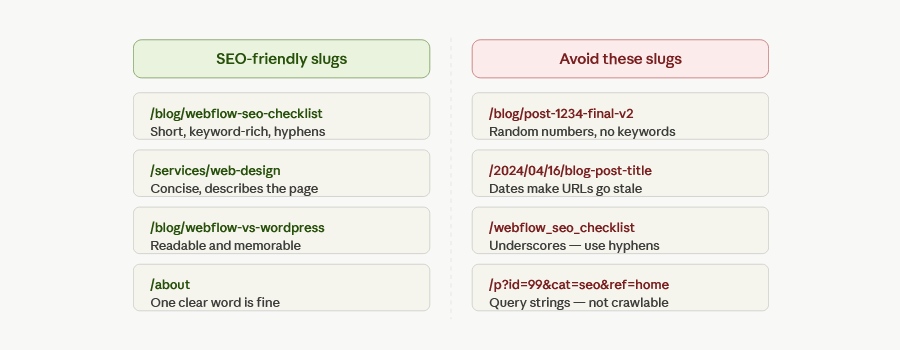
Clean, descriptive URLs help both users and search engines understand your page.
Best practices:
- Use hyphens, not underscores
- Include your primary keyword
- Keep it short and readable
- Avoid dates, stop words, and random numbers
In Webflow: Go to Page Settings → Slug or in CMS collection items, set the slug field.
Example:
❌ /blog/post-1234-final-v2
✅ /blog/webflow-seo-checklist
✅ Step 16: Create High-Quality, Keyword-Targeted Content
Content is still king in 2026. Google’s Helpful Content update rewards pages that genuinely serve users — not just keyword-stuffed articles.
For each page:
- Identify one primary keyword and 3–5 secondary keywords
- Write at least 1,000 words for competitive topics
- Answer the search intent fully (informational, transactional, navigational)
- Use short paragraphs, bullet points, and visuals
- Update old content regularly (freshness is a ranking signal)
Tools to use: Google Keyword Planner, Ahrefs, Semrush, or free tools like Ubersuggest.
✅ Step 17: Optimize for Featured Snippets
Featured snippets appear at the very top of search results (also called “Position 0”). They’re the golden ticket for AEO (Answer Engine Optimization).
How to win featured snippets:
- Answer a question directly in the first paragraph under an H2
- Use numbered lists for “how to” queries
- Use bullet lists for “best of” queries
- Use a table for comparison queries
- Keep the answer between 40–60 words
✅ Step 18: Internal Linking Strategy
Internal links help Google crawl your site, distribute page authority, and keep users engaged longer.
Best practices:
- Link related pages together naturally
- Use descriptive anchor text (not “click here”)
- Make sure every important page gets at least 2–3 internal links
- Create a logical silo structure (related topics linked together)
Example internal links you might add to this post:
- “Learn how to set up Google Analytics on Webflow” → link to your Analytics setup guide
- “See our Webflow speed optimization guide” → link to your performance post
- “Explore our Webflow CMS tutorial” → link to your CMS deep dive
✅ Step 19: Add External Links to Authority Sources
Linking to high-quality, authoritative external sources signals to Google that your content is well-researched and trustworthy.
Authoritative sources for SEO:
- Google Search Central — official Google SEO documentation
- Moz Beginner’s Guide to SEO — industry standard SEO learning resource
- Ahrefs Blog — data-driven SEO research and guides
- Schema.org — structured data reference
Section 3: Content & CMS SEO
Webflow’s CMS is a powerful SEO asset when used correctly.
✅ Step 20: Set Up CMS Collection SEO Fields
If you use Webflow CMS for your blog or portfolio, make sure every collection item has dynamic SEO fields.
Set up these fields in your CMS Collection:
- SEO Title (bound to a text field)
- Meta Description (bound to a text area field)
- OG Image (bound to an image field)
- Slug (auto-generated from the name field)
In Webflow: Go to your Collection → Collection Settings → SEO → bind each field to a CMS field.
✅ Step 21: Enable Open Graph Tags
Open Graph tags control how your pages look when shared on social media (Facebook, LinkedIn, Twitter/X). A good OG image increases social traffic and indirectly boosts SEO through engagement.
Set in Webflow: Go to Page Settings → Open Graph and fill in:
- OG Title
- OG Description
- OG Image (1200×630px recommended)
✅ Step 22: Build Topic Clusters (Content Silos)
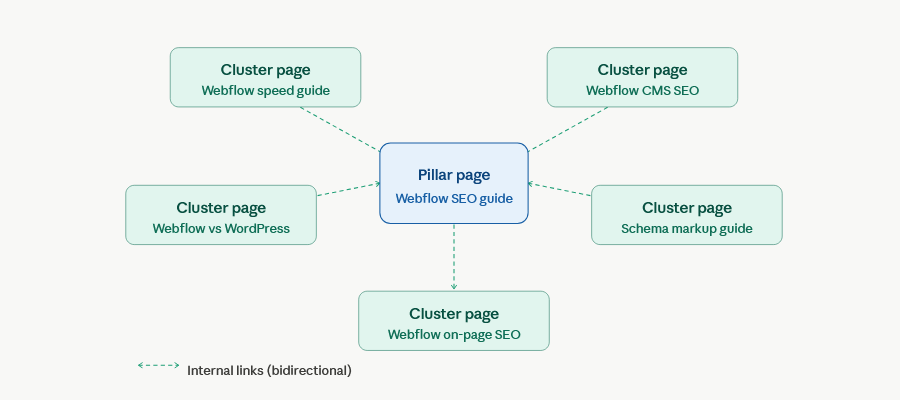
Instead of writing random blog posts, organize your content into clusters. A pillar page covers a broad topic, and cluster pages cover specific subtopics — all linked together.
Example cluster:
Pillar: Webflow SEO Guide (this post)
  Cluster: How to Speed Up Your Webflow Site
  Cluster: Webflow CMS SEO Setup
  Cluster: Webflow vs WordPress for SEO
  Cluster: How to Add Schema to Webflow
This structure helps Google understand your site’s authority on a topic.
Section 4: Off-Page SEO & Authority
✅ Step 23: Build Quality Backlinks
Backlinks — links from other sites to yours — are still one of Google’s top ranking factors. One strong backlink from an authoritative site beats 100 weak ones.
Ethical link building strategies:
- Guest post on industry blogs
- Create linkable assets (free tools, original research, infographics)
- Get listed in relevant directories
- Reach out to bloggers who mention your competitors
- Use HARO (Help a Reporter Out) to get cited in media
✅ Step 24: Optimize Your Google Business Profile (For Local SEO)
If you serve local clients, your Google Business Profile is a critical SEO asset — often appearing before organic results.
Optimize it by:
- Adding accurate NAP (Name, Address, Phone) details
- Uploading high-quality photos
- Collecting and responding to reviews
- Posting updates regularly
- Linking directly to your Webflow site
✅ Step 25: Track, Measure, and Iterate
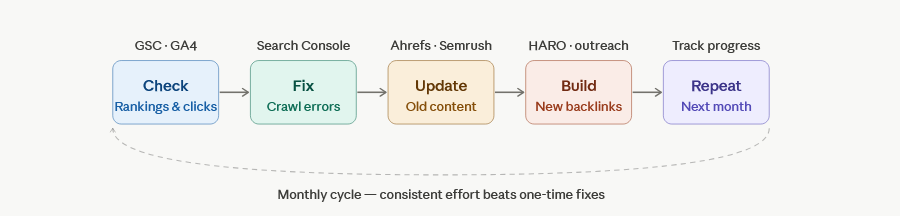
SEO without data is guessing. Set up proper tracking from day one.
Essential tools:
- Google Search Console — impressions, clicks, keyword rankings, crawl errors
- Google Analytics 4 — traffic, user behavior, conversions
- Ahrefs or Semrush — backlink tracking, keyword monitoring
- PageSpeed Insights — Core Web Vitals monitoring
Review monthly:
- Which pages are climbing? Double down on what’s working.
- Which pages are dropping? Update content or build more links.
- What keywords are driving clicks? Create more content around them.
Pro Tips & Expert Insights
🔥 Use Webflow Localization for Multi-Language SEO
Webflow’s built-in localization feature (launched in 2023, refined through 2025) lets you create properly structured hreflang tags for multi-language sites. This is crucial for international SEO.
🔥 Leverage AI Overviews (SGE) Optimization
Google’s AI Overviews (formerly Search Generative Experience) now appear for many queries. To get cited in AI answers:
- Structure your content with clear Q&A formatting
- Use schema markup (especially FAQ and How-To)
- Build strong topical authority in your niche
- Keep your facts accurate and well-cited
🔥 Use Webflow’s Finsweet Attributes for Advanced SEO
Finsweet’s free CMS attributes allow filtering, sorting, and pagination on CMS collections without JavaScript conflicts — keeping your pages fast and crawlable.
🔥 Don’t Ignore E-E-A-T
Google’s quality guidelines emphasize Experience, Expertise, Authoritativeness, and Trustworthiness (E-E-A-T). Add author bios, credentials, and trust signals like reviews and certifications to your Webflow site.
FAQ: Webflow SEO Common Questions
Is Webflow good for SEO in 2026?
Yes. Webflow is excellent for SEO in 2026. It generates clean semantic HTML, offers full control over meta tags and structured data, has a built-in CDN for fast load times, and auto-generates sitemaps. It’s competitive with — and in some ways better than — WordPress for SEO.
Does Webflow automatically do SEO?
No. Webflow provides the tools, but you need to configure them. This means setting title tags, meta descriptions, image alt text, canonical URLs, and schema markup for each page manually (or dynamically through CMS bindings).
How do I add schema markup to Webflow?
Go to Page Settings → Custom Code → Head Code and paste your JSON-LD schema markup. For CMS pages, you can use dynamic embeds to pull in CMS fields into your schema code automatically.
How long does Webflow SEO take to work?
SEO typically takes 3–6 months to show meaningful results, regardless of the platform. New sites with no domain authority may take 6–12 months. Focus on consistent content creation, technical fixes, and link building for the best results.
Can I use Webflow for local SEO?
Absolutely. Webflow supports all the local SEO essentials: custom title tags with location keywords, schema markup for LocalBusiness, Google Maps embeds, and fast mobile-friendly pages. Pair your Webflow site with a fully optimized Google Business Profile.
What’s the biggest Webflow SEO mistake?
The most common mistake is leaving the site on the default Webflow subdomain (yoursite.webflow.io) or forgetting to connect Google Search Console. Both prevent Google from properly indexing and crediting your domain.
Conclusion: Your Webflow SEO Action Plan
Ranking on Google in 2026 isn’t about gaming the algorithm — it’s about building a site that genuinely serves users and gives search engines everything they need to understand and trust your content.
Here’s your quick-start action plan:
- This week: Set up Google Search Console, submit your sitemap, and fix any 404 errors
- This month: Optimize title tags, meta descriptions, and image alt text for your top 10 pages
- Ongoing: Publish keyword-targeted content, build backlinks, and monitor your rankings monthly
Webflow gives you all the tools — now it’s time to use them.
Ready to go deeper? Explore Webflow’s official SEO documentation, or check out our related guides below.

